
Podbean supports podcast migration from another hosting platform by importing your existing podcast through your RSS feed.
This guide explains how to prepare your current feed, import your podcast to Podbean, set up a 301 redirect, and check that your episodes and distribution platforms are working after the move.
Note: This feature is available only for users on Podbean’s Unlimited Audio plan or higher.
Get Ready Before You Move
Step 1: Make Sure You Have What You Need
Before starting, make sure you have your current podcast RSS feed URL.
You should also be able to log in to both your current podcast host and your Podbean account.
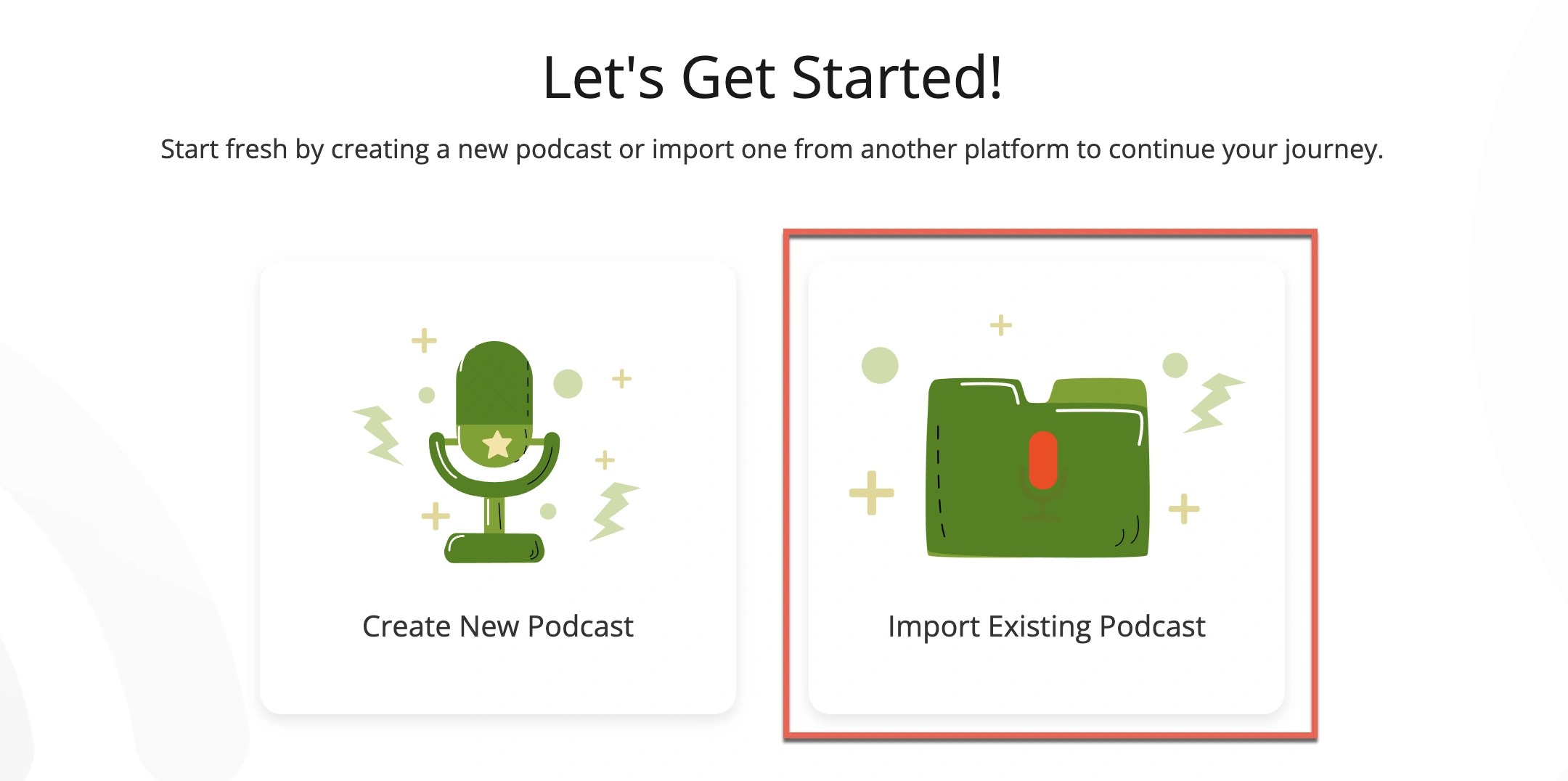
If you’re new to Podbean, head over to podbean.com and sign up. During the process, choose “Import Existing Podcast.”
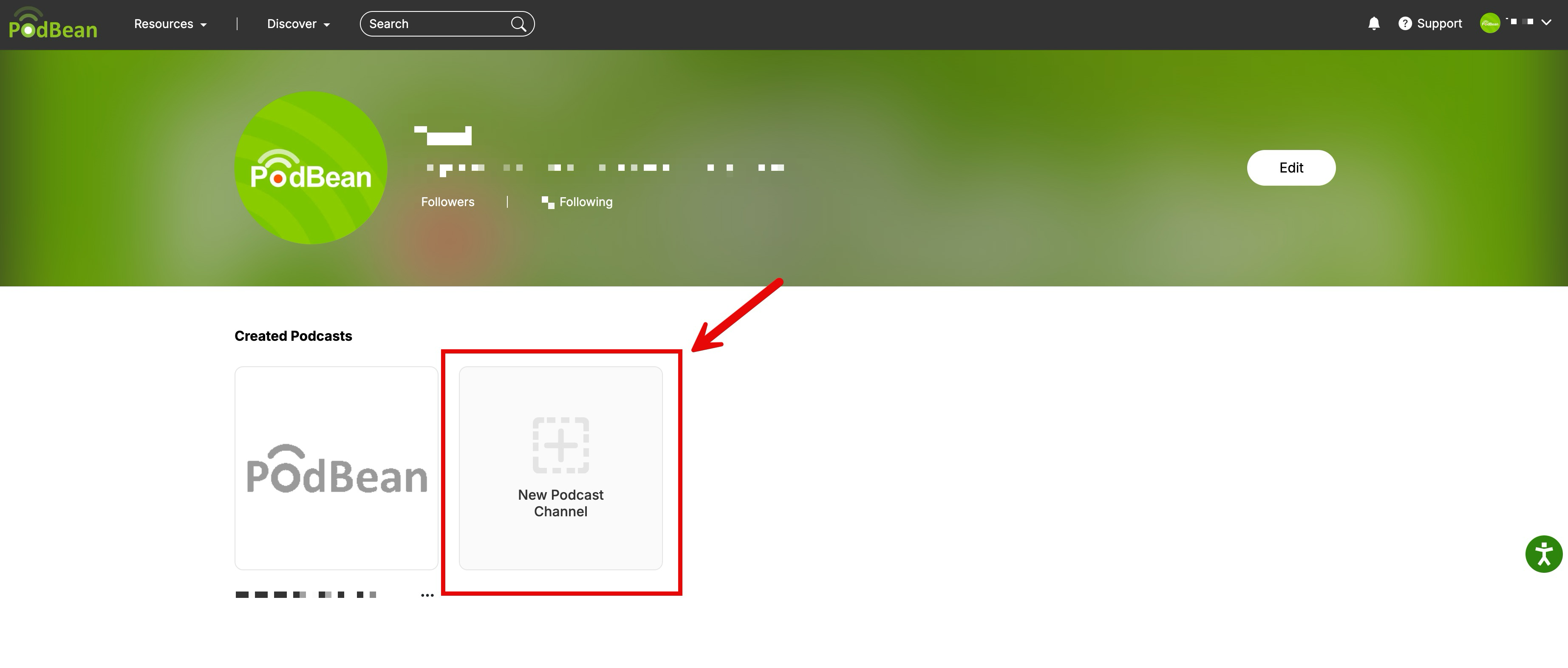
If you already have a Podbean account, create a new channel to import your existing podcast. Podbean supports creating and managing multiple podcast channels under one account.
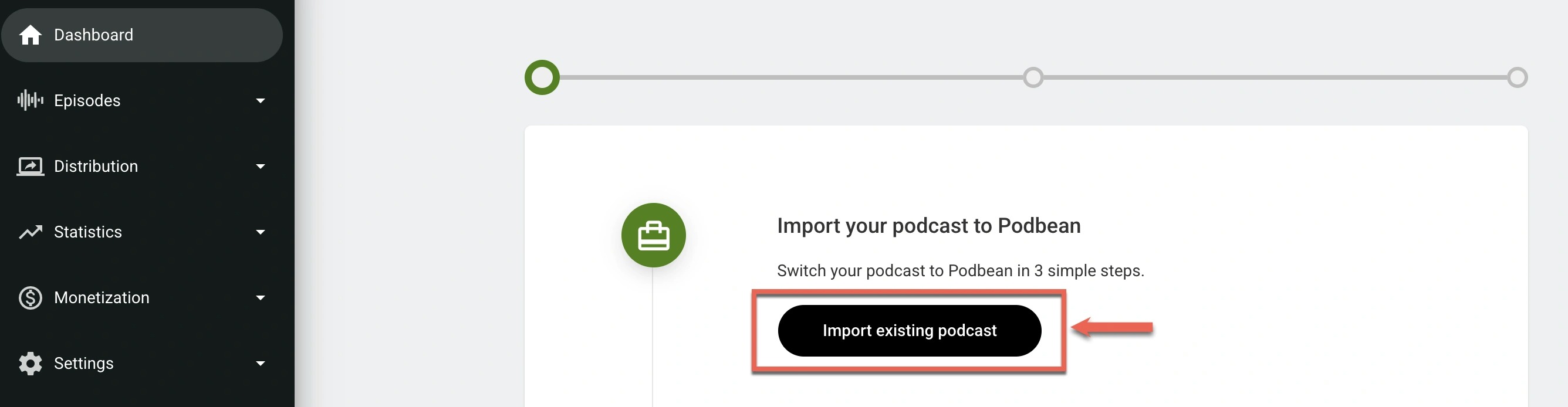
From your Podcast Dashboard, click “Import existing podcast”.
Note: After your first import, this option will no longer appear on the main page. You can still access it by going to Settings -> Import to Podbean.Bringing Your Show into Podbean
Step 1: Import to Podbean
Go to Settings -> Import to Podbean.
Choose RSS Feed URL as your content source.

Paste your feed link and click on the "Next" button.

- Choose to import podcast information and Apple Podcast settings from the RSS feed.
- If your audio file isn't .mp3, choose to convert it to .mp3 during import.
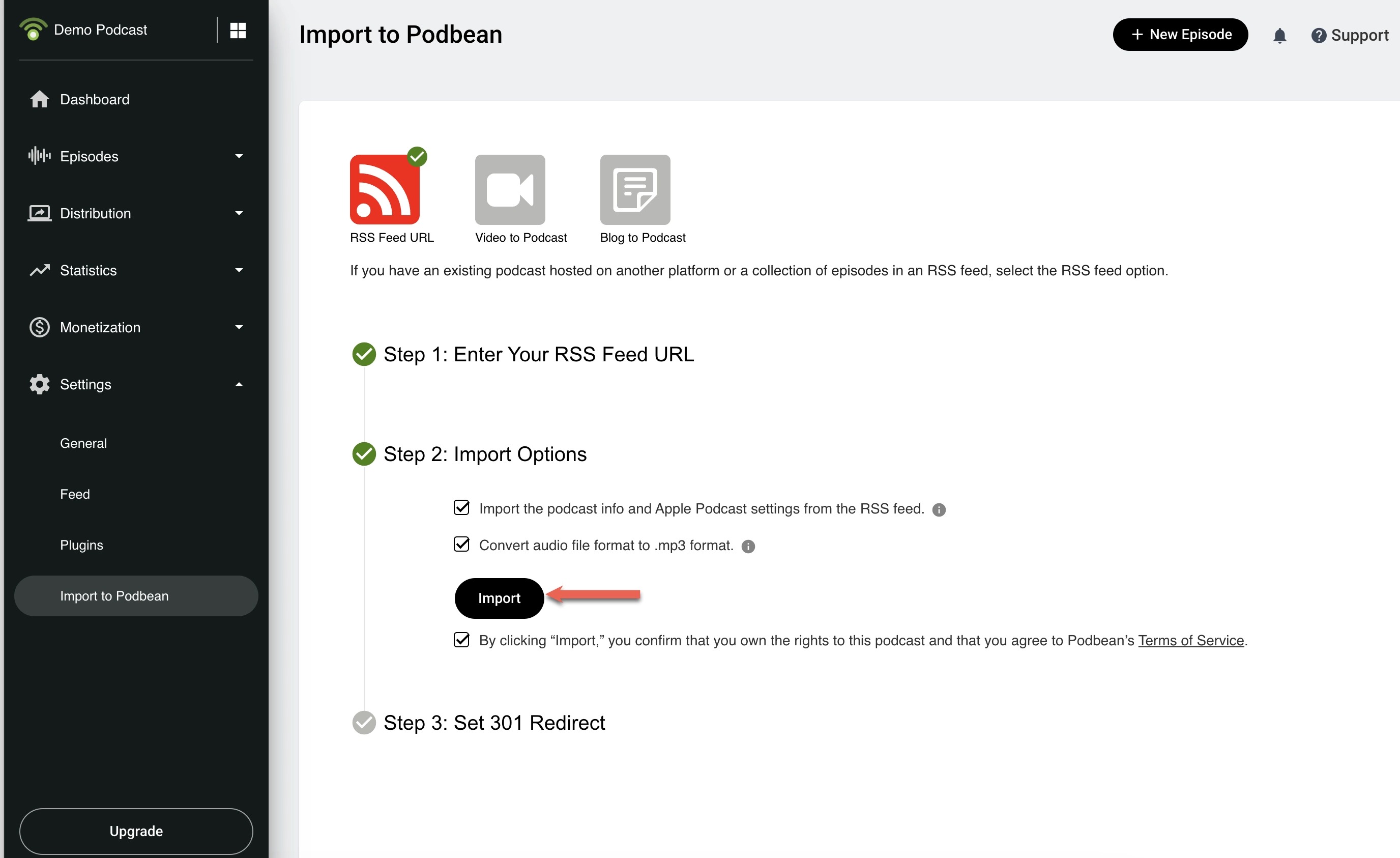
Note: Choose MP3 conversion if you want to submit your podcast to Spotify through Podbean. Spotify only accepts '.mp3' file format.
To complete the import, set up a 301 redirect in your previous podcast hosting platform. This redirect will guide your audience from the old feed to your new Podbean feed.
For detailed instructions on how to carry out this redirect, click here.
After setting up the 301 redirect, return to Podbean and click Check Redirect.
If the redirect works properly, Podbean will import your media files into the Podbean Media Manager.

Make Sure Everything’s Working
After the redirect is active, check that your episodes are available through Podbean.
Make sure to:
- Check that your show updates correctly on your previously submitted distribution platforms such as Apple Podcasts and Spotify.
- Review your media manager in Podbean to ensure all episodes are present.
- Import Episode Stats When Moving to Podbean.
Frequently Asked Questions
Will I lose my subscribers on podcast apps like Apple Podcasts?
No. If the 301 redirect is set up correctly, your subscribers will be redirected to your new Podbean feed.
Can I import stats from my previous host platform?
Yes. Podbean allows you to import the total number of downloads you had on each episode into Podbean. For more details, click here.
How long does the migration take?
Migration usually takes from a few minutes to a few hours, depending on the size of your show and how your current host handles redirects.
What should I do with distribution platforms like Apple Podcasts and Spotify after moving to Podbean?
If you set up a 301 redirect correctly, most major platforms will automatically pick up the new Podbean feed.
However, it is still a good idea to log in to Apple Podcasts Connect, Spotify for Podcasters, and other directories to check that your feed has updated.
If needed, you can manually replace the old RSS feed with your new Podbean feed to speed up the switch.