Creating your own podcast on the Podbean app is a breeze. Follow these easy steps to get started.
1. Record Audio
2. Edit Recording
3. Publish Episode
4. Share Episode
1. Record Audio
Log in to your Podbean account in the Android app.
Tap the “+” icon at the bottom of the screen, then tap Recording.
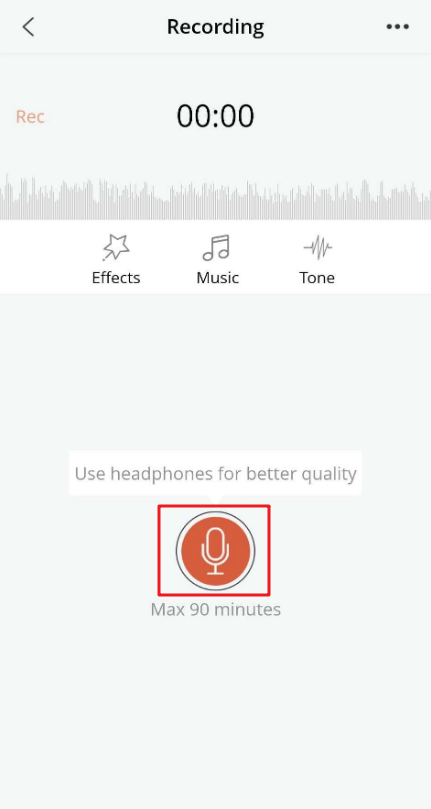
On the recording page, tap the microphone icon to start recording.
While recording, you can enhance your recording by adding background music or sound effects.
If you want to record with co-hosts or guests from different locations, use Podbean’s Group Recording feature instead.
For more information about recording an episode, please refer to Android | Recording a Podcast.
2. Edit Recording
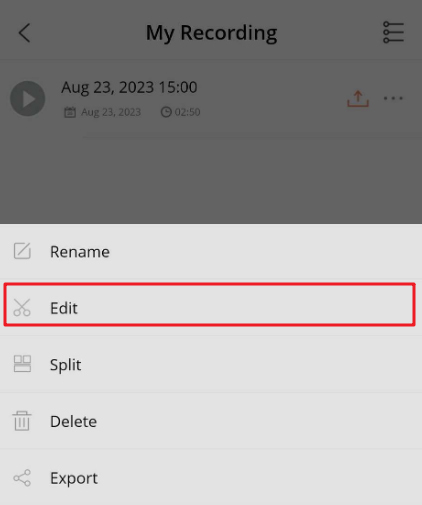
After recording, you can edit your audio in the Podbean Andriod app.
The app supports editing options such as cutting audio, adding intros or outros, merging recordings, splitting recordings, importing audio files, and exporting audio files.
Use these tools to adjust your episode before publishing.
Learn more about fine-tuning your content through our Editing Recording guide.
3. Publish Episode
Go to My Recording and tap the upload icon for the recording you want to publish.
Select Publish to open the episode publishing page.
Add the episode details needed for publishing, then publish the episode from the app.
You can also select Optimize with AI before publishing. Podbean AI can help improve audio quality by reducing noise and adjusting volume levels, and it can generate episode content such as titles, descriptions, and chapters.
Learn more about optimizing with Podbean AI.

4. Share Episode
After the episode is published, you will be directed to your podcast page.
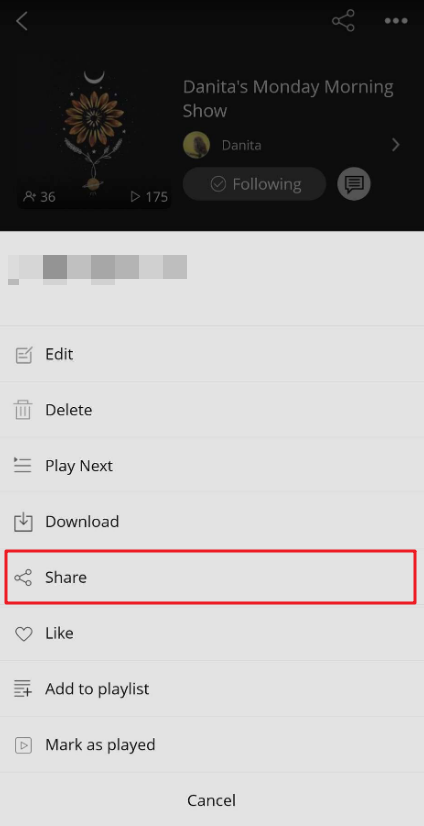
Tap the three dots icon, then tap Share.
Choose where you want to share the episode with your friends, followers, or audience.