
Podbean supports podcast episode publishing and editing from the podcast dashboard, so you can upload audio or video, update episode details, schedule releases, and remove episodes when needed.
This guide explains how to publish a new episode, set episode artwork, edit an existing episode, schedule updates, and delete episodes from your Podbean dashboard.
Before you start, make sure you have a Podbean account, access to your podcast dashboard, and the media file or episode details you want to publish or update.
Publish a New Podcast Episode
Step 1: Create a New Episode
Log in to your Podbean account and go to your podcast dashboard.
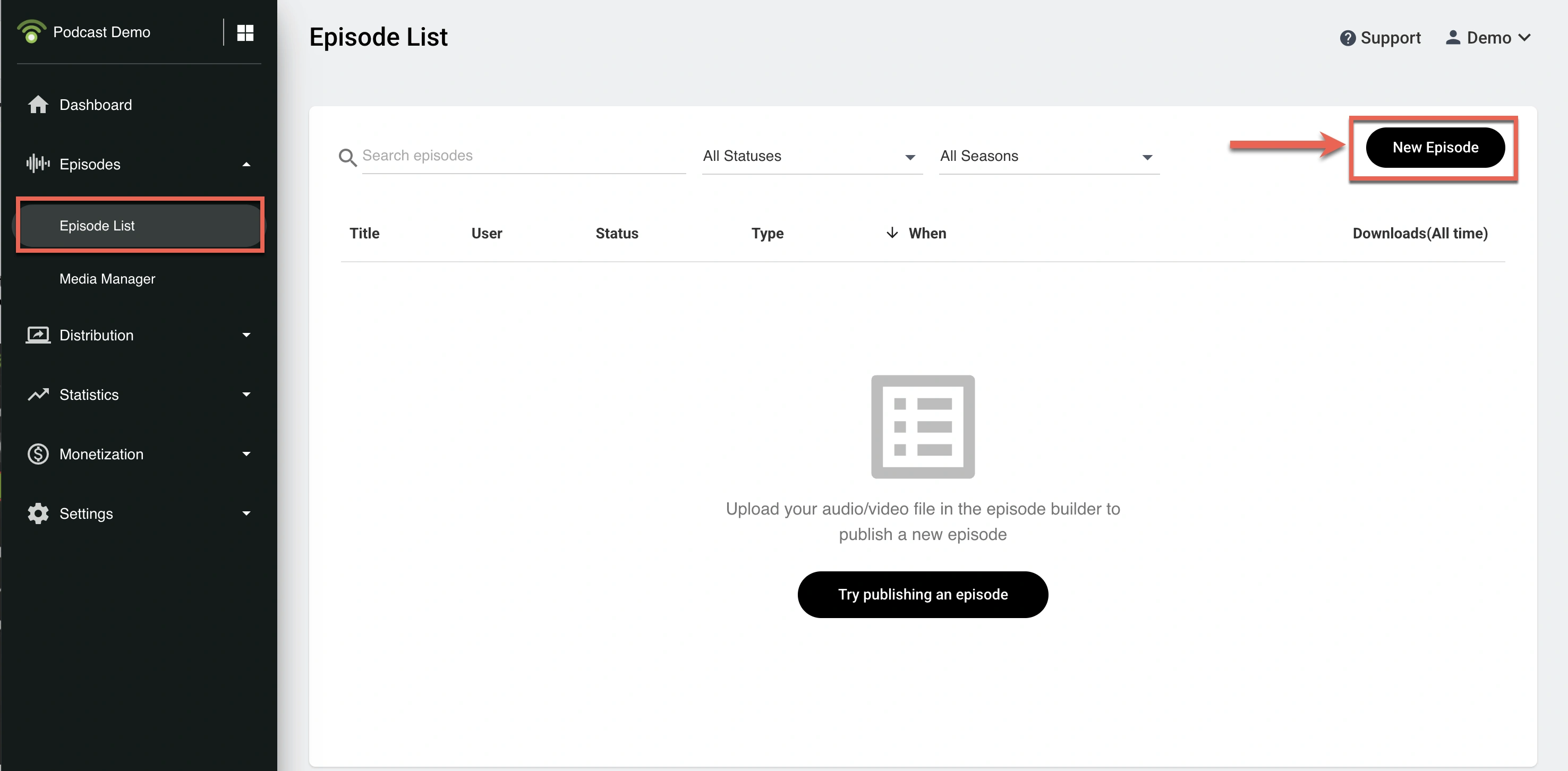
Click Episodes -> Episode List, or click the New Episode button in the top right corner.
Step 2: Upload or Select a Media File
Click Choose a File to Upload to upload a new audio or video file.
You can also click Select from Account to choose a file that is already in your Media Manager.
Note: The process for uploading an audio or video podcast is the same. Video podcast publishing is available on Podbean’s Unlimited Plus plans and above.
Step 3: Edit Episode Information
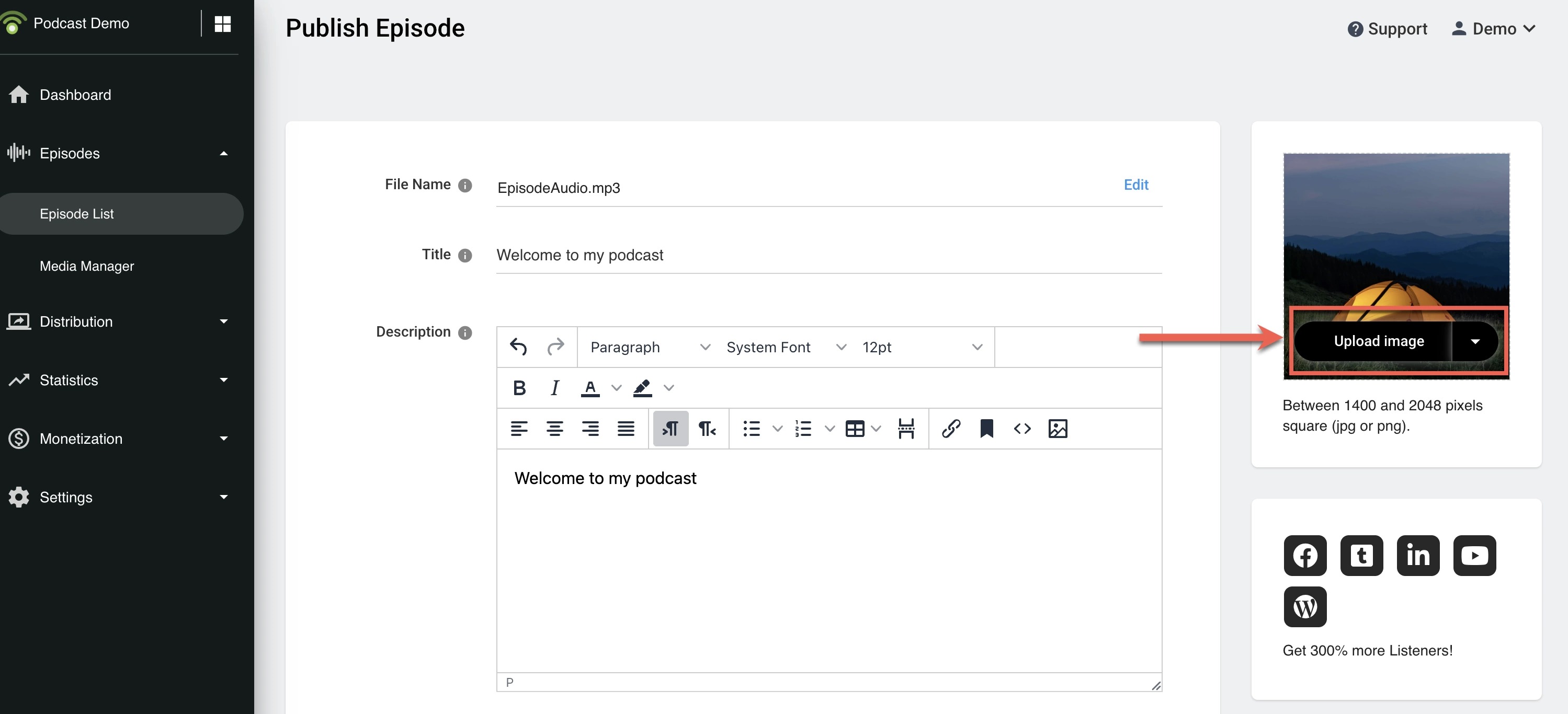
Add or update the episode title, description, and episode artwork.
For episode artwork:
- Click Upload image to upload a new episode image.
- Or select an image from Media Manager by using the drop-down menu.
- If you do not choose an episode image, Podbean uses your channel logo as the default episode image.
Step 4: Save or Publish the Episode
You can choose whether to publish the episode now, schedule it for later, or save it as a draft.
- Publish now
If the episode is ready to go live immediately, click Publish Now to release the episode immediately.
- Schedule for later
If you want the episode to go live at a specific future date and time, click the arrow next to Publish Now, select Schedule Episode, then choose the publish date and time.
- Save as draft
If you want to keep working on the episode before publishing it, click Save as a Draft to save the episode without releasing it.
Step 5: After Publishing
After publishing, the episode will appear on Podbean and be pushed to third-party directories where you have submitted your podcast.
Edit an Existing Episode
Go to your Podcast Dashboard and click Episodes -> Episode List in the left-hand menu.
Click the episode title you want to edit.
Update the title, description, media file, image, or other episode options.
Click Update to save your changes. To update the media file, please check the detailed guide here.

To schedule a future update, click the arrow next to Update, then select the date and time.

Note: Changes usually appear on your Podbean podcast website and RSS feed shortly. Third-party directories such as Apple Podcasts and Spotify may take longer to update because each platform uses its own cache and refresh schedule. Listeners who already downloaded the episode may also continue to see the earlier version.
Delete an Episode
Go to your Podcast Dashboard and click Episodes -> Episode List in the left-hand menu.
Select the episodes you want to delete by ticking the checkboxes beside them.
Click Delete to remove the selected episodes.

Note: Deleted episodes cannot be restored. Deleted episodes are removed immediately from your Podbean podcast website and RSS feed, but third-party directories and listeners’ devices may take longer to update because of caching.
Learn More
For additional publishing options, see: