
To access these settings, go to Settings -> Feed from your podcast dashboard.
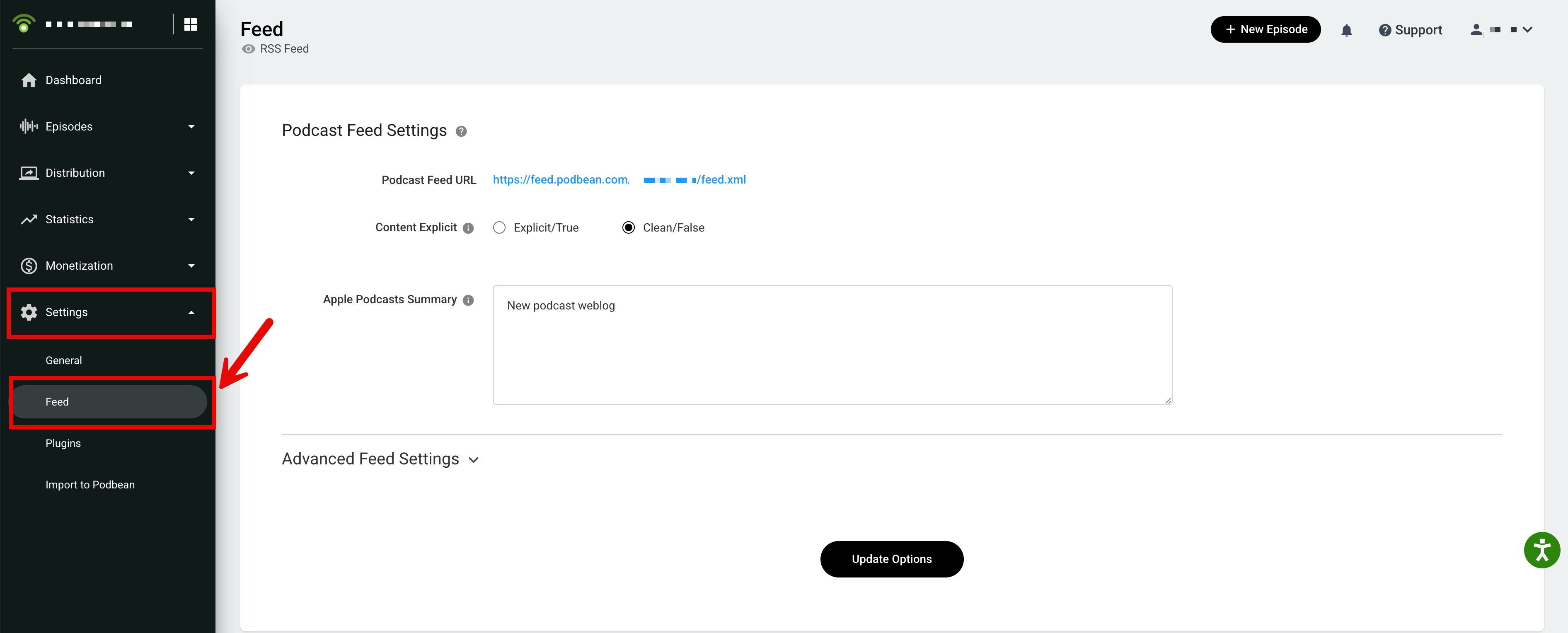
Podcast Feed Settings
The Podcast Feed Settings section includes your podcast feed URL, explicit content setting, and Apple Podcasts summary.
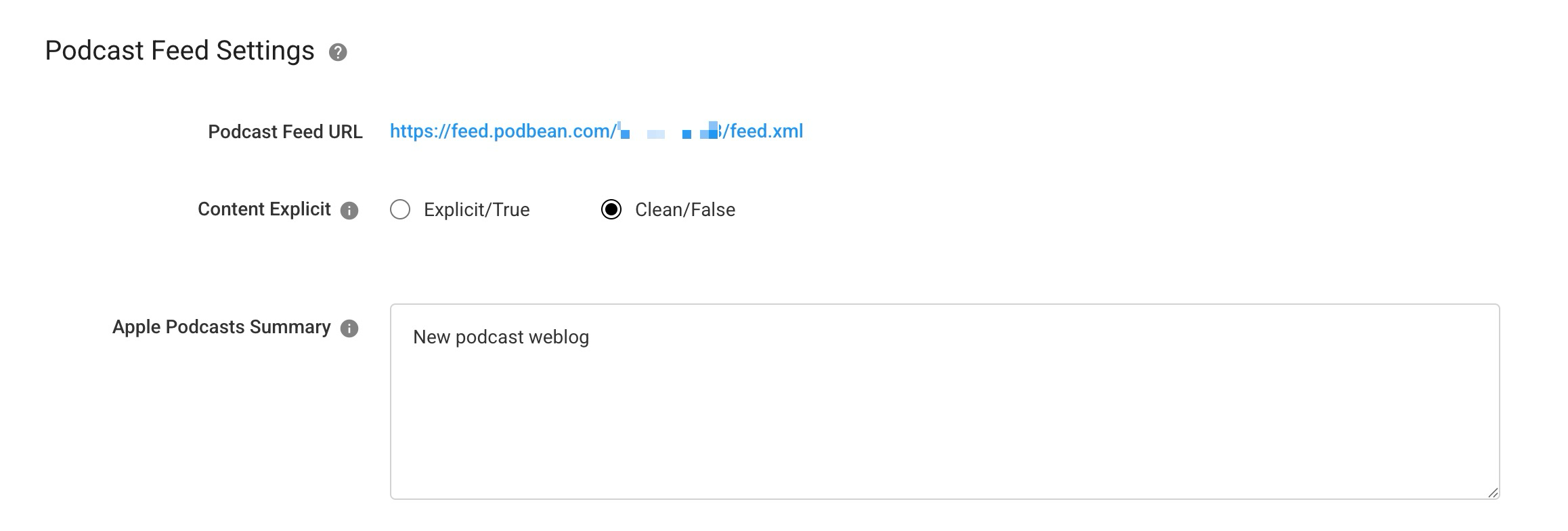
Podcast Feed URL
Your Podcast Feed URL is the RSS feed URL for your podcast.
If you want your podcast to appear on other podcast platforms, you can submit this feed URL to those platforms.
Content Explicit
The Content Explicit setting indicates whether your podcast contains explicit material:
- If your podcast contains explicit content, choose Explicit/True.
- If your podcast does not contain explicit content, choose Clean/False.
Note: Podcasts with explicit content may not be available in some territories of Apple Podcasts or other apps.Apple Podcasts Summary
The Apple Podcasts Summary is an optional short description for your podcast.
This content is included in your podcast feed as the '<itunes:summary>' tag and may appear on platforms such as Apple Podcasts and other apps.
If you do not enter an Apple Podcasts Summary, the Brief Description from Settings -> General will be displayed instead.
Advanced Feed Settings
Advanced Feed Settings let you further customize how your podcast and episodes appear in your RSS feed, including website links, episode links, episode limits, artwork tags, verification email, Apple directory settings, and feed redirects.

Podcast Website
The Podcast Website setting gives you the option to add another website URL to your podcast RSS feed.
This URL is used and displayed as the "Show Website" on Apple Podcasts. By default, Podbean automatically fills in your Podbean podcast website URL.
This setting is also used as the podcast link on the Podbean embeddable player. When listeners click your podcast title through an embeddable player, they will be directed to this podcast website.
Note: This setting is available on Podbean Unlimited Audio and above hosting plans.Episode Link
The Episode Link setting lets you customize the URL for each episode in your RSS feed.
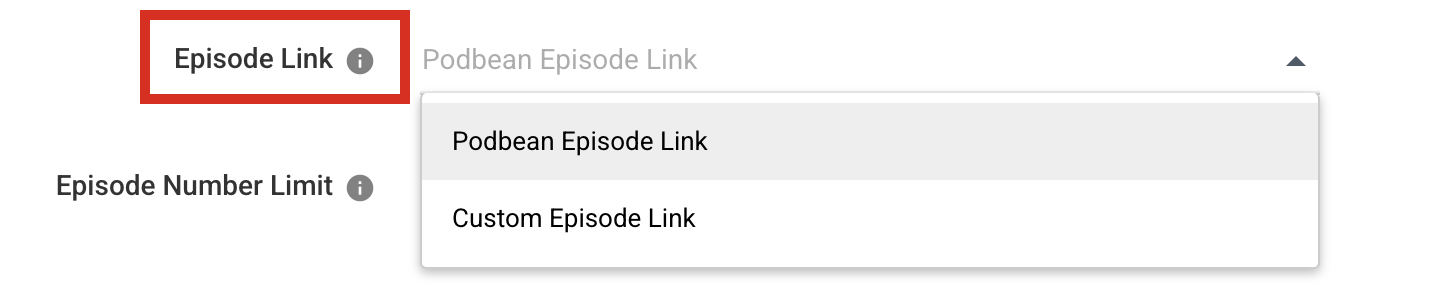
You have two options to choose from:
a. "Podbean Episode Link" (default option):
The episode page provided by Podbean will be displayed as the Episode Website.
b. "Custom Episode Link":
You have the freedom to personalize the episode link URL.
i. Add URL to "More Episode Settings" -> "Link in RSS Feed" for publishing/editing episode.
ii. The episode link URL will be displayed as the Episode Website on Apple Podcasts.
This setting can also be used as the episode link on the Podbean embeddable player. When listeners click your episode title through an embeddable player, they will be directed to your episode website.
Note: This setting is available on Podbean's Unlimited Audio and above hosting plans.
Episode Number Limit
The Episode Number Limit setting allows you to specify how many episodes you want to show in your RSS feed.
The Episode number limit varies based on the subscription plan:
- Unlimited Audio Plan: Upper limit of 999 episodes.
- Unlimited Plus Plan: Upper limit of 1999 episodes.
- Business Plan: Upper limit of 2999 episodes.
Note: Including too many episodes in your podcast feed can affect feed performance and user-friendliness. To help maintain a smoother listener experience, avoid adding an excessive number of episodes to the feed.Episode Artwork Tag
The Episode Artwork Tag allows you to use different ways to include the episode logo in your podcast feed according to your specific needs.
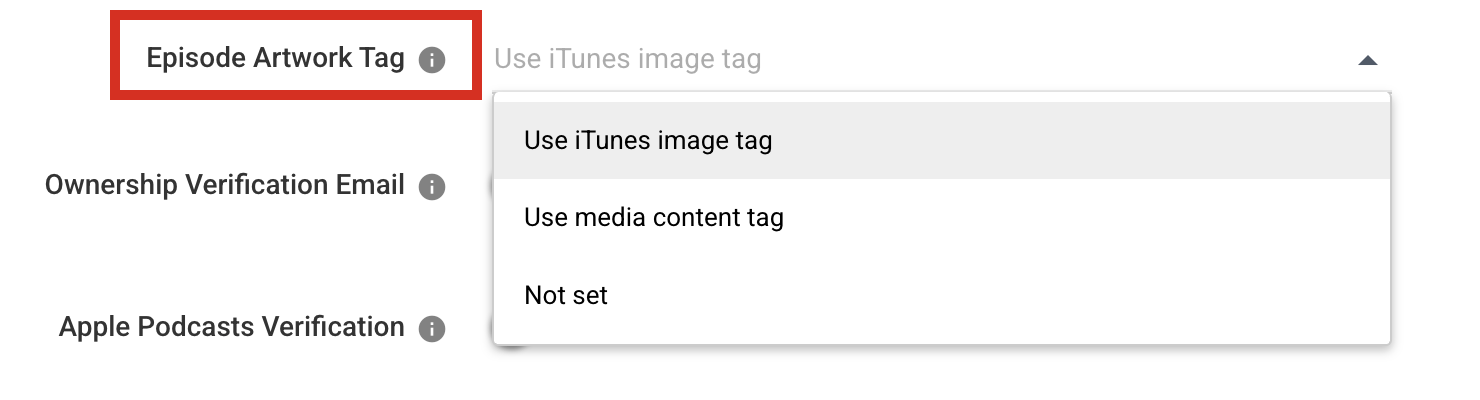
a. The iTunes image tag
The iTunes image tag is primarily used by Apple Podcasts and may also be used by other podcast directories or platforms that use the iTunes image tag to display episode logos.
Using the iTunes image tag may allow your episode logo to display on platforms such as Spotify, Amazon, and iHeartRadio.
Note: Apple Podcasts does not currently support individual episode logos.
b. The media content tag
The media content tag is rarely used by other platforms for displaying episode logos. iHeartRadio is an exception that uses this tag.
c. Not Set
The episode logo will not be included in your podcast feed.
Ownership Verification Email
Podbean hides email addresses in the RSS feed by default for privacy protection.
If you are submitting your podcast to a directory that requires email verification, you can enable Ownership Verification Email and enter your email address to make it visible for 48 hours.
Remove from Apple Directory
The Remove from Apple Directory tag lets you specify the show or hide status of your podcast on Apple Podcasts.
Use this setting if you want your show to be removed from the Apple directory.
Set Podcast New Feed URL
If you have already submitted a feed in Apple Podcasts and is migrating to Podbean, you will need to update Apple Podcasts so it pulls from your new Podbean feed.
To do this, set a redirect on your old feed and set a new feed URL tag on your Podbean feed.
Generate MP3 for Video Episodes
The Generate MP3 for Video Episodes feature automatically generates an MP3 audio version of your video episodes in your feed, ensuring compatibility with platforms like Spotify, while delivering HLS video streams to video-supported platforms like Apple Podcasts.
Redirect to a New Feed
The Redirect to a New Feed setting should only be used when you are fully prepared to permanently move your podcast to a different hosting platform.
When you enter the new feed URL in this setting, your Podbean feed will redirect to the new feed URL.