
Podbean supports podcast recording in the iOS app, so you can record audio for a podcast episode directly from your mobile device.
This guide explains how to start a recording, review your audio, add background music or sound effects, trim unwanted clips, and save the finished recording.
1. Start Recording
4. Review or Redo Your Recording
3. Adding Background Music and Effects
4. Edit Unwanted Clips
5. Save Recording
1. Start Recording
Log in to your Podbean account in the iOS app.
Tap the “+” icon at the bottom of the screen, then tap Recording.
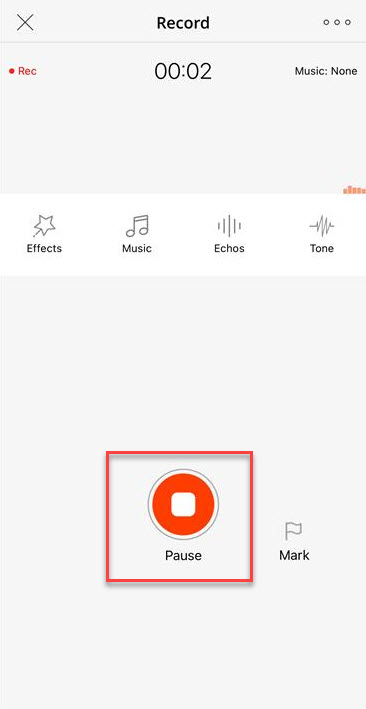
On the recording page, tap the red microphone icon to start recording.
You can pause and resume the recording at any time.
If you want to mark an important discussion point, mistake, or section you may want to find later during editing, tap the flag icon while recording.
If you want to record with co-hosts or guests from different locations, use Podbean’s Group Recording feature instead.
2. Review or Redo Your Recording
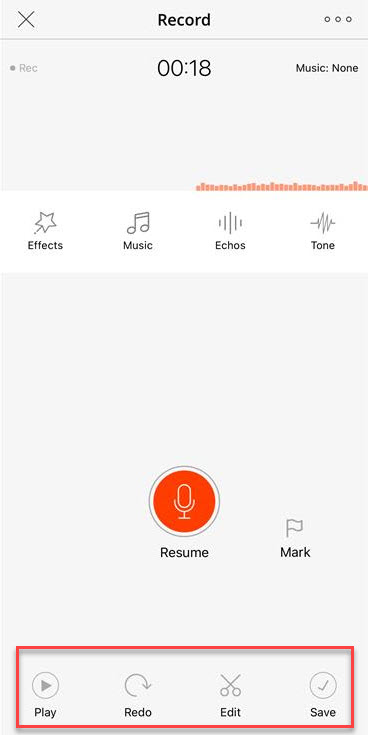
To review your audio, pause the recording and tap the Play button.
If you are not satisfied with the recording, tap Redo to delete the current recording and start again.
3. Adding Background Music and Effects
You can enhance your recording with background music or sound effects in the Podbean iOS app.
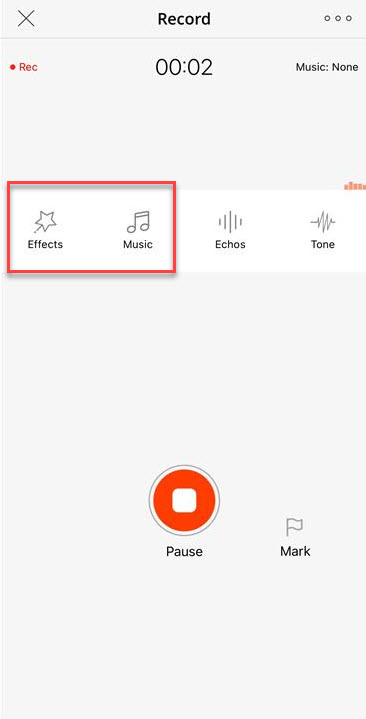
To add background music, tap the Music button, then tap the “+” icon to choose the music you want to use.
Podcasters with a paid subscription can upload custom background music.
To add sound effects, tap the Effects button, then choose the effects you want to add to the recording.
4. Edit Unwanted Clips
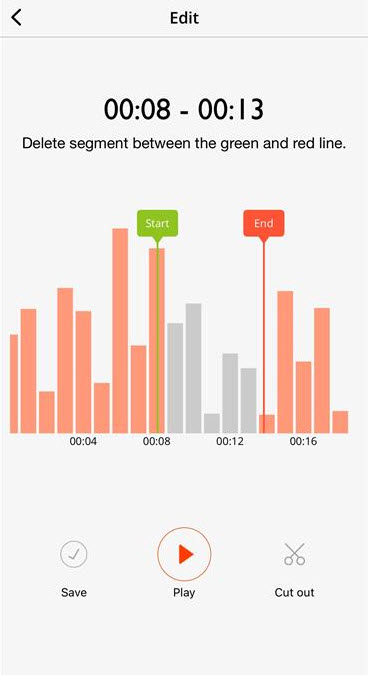
Tap the Edit button to adjust the recording.
Use the trim lines to remove unwanted segments from your audio.
5. Save Recording
When you are satisfied with the recording, pause the recording and tap Save.
After saving, the recording will be available in the app for further editing or publishing.
Advanced Articles
After you've recorded your episode, if you'd like to continue editing the recording or publish it directly as a podcast episode, check out the following guides: