
Podbean AI Podcast Creator is an all-in-one tool that uses AI to turn text, files, URLs, or ideas into complete podcast episodes. It automatically generates a script, produces audio with natural-sounding AI voices, and lets you add background music—so you can create a professional podcast episode quickly without recording or manual editing.
How much it costs
AI credits are used for both script generation and audio production.
- Script generation is based on the length of the generated podcast script: every 1000 characters costs 1 AI credit.
Note: If you select “no AI rewriting” under Podcast preferences, no credits are used for the script. - Audio generation costs 10 AI Credits per minute.
For more details, please refer to Podbean AI credits.
How it works
Follow these simple steps to turn your content into a complete podcast episode using AI:
Step 1: Create a New Project
Step 2: Prepare Your Script
Step 3: Generate Your Episode Audio
Step 4: Export Your Episode Audio
Step 1: Create a New Project
Sign in to your Podbean account. Go to Episodes -> Episode List, then click New Episode.
On the episode publish page, under AI Podcast Creator, click Go to Create to start a new project.
Step 2: Prepare Your Script
Choose one method to provide source content for your episode:
- Ideas: Describe what you want to create—topic, audience, tone, and key points. You can also start with the on-screen prompts.
- File: Upload a document and Podbean AI will turn it into a podcast script.
Supported formats: PDF, DOCX, TXT, HTML. - Post URL: Paste a website or blog post URL, and Podbean AI will use the page content to create your episode.
Want future blog posts to auto-sync to AI Creator? Set it up in Connections. - TXT: Paste any text to convert into a natural, lifelike audio episode.
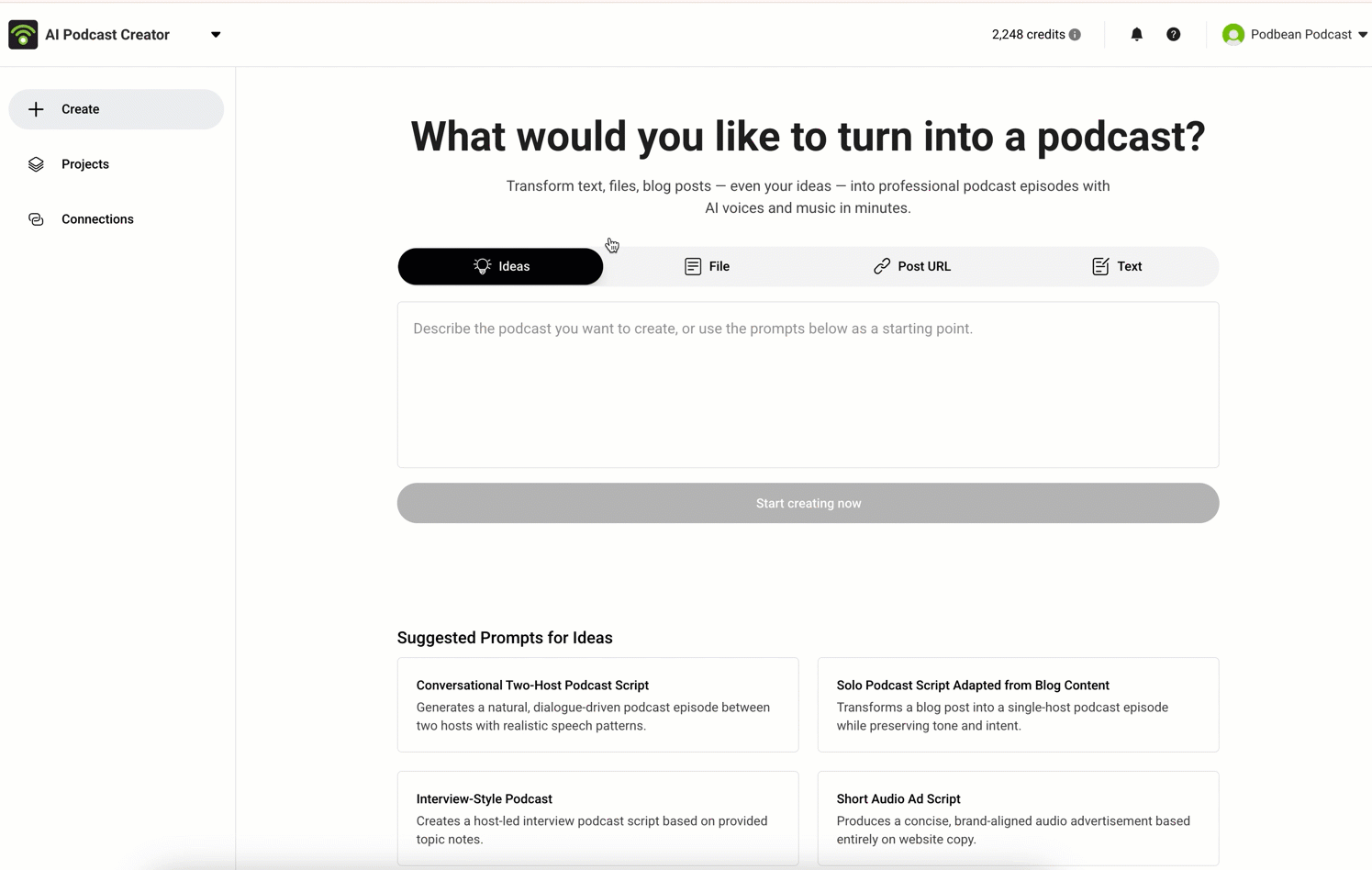
Set your Podcast preferences and duration:
- Podcast preference (available for File / Post URL / TXT): Choose the overall style/tone for how the script will be written. This helps Podbean AI rewrite your content into a podcast-friendly format.
Available options: Standard/Conversational/Storytelling/No Rewriting/Custom Instructions - Podcast duration: Choose the length range of the episode you want Podbean AI to create. This helps Podbean AI adjust the script length based on your content.
Available options: Short/Default/Long

After you submit the content and preferences, a script will be prepared. Review it in the editor and make edits as needed.
Step 3: Generate Your Episode Audio
1. Apply voices
- Select the paragraph(s) you want to generate (Command/Ctrl + click for multiple), choose a voice from AI Voices, then click Apply to apply the voice.
- Use Voice settings to adjust options like speed, language, or speaking style.
To browse more voices, click Explore more. Click the star icon to save voices to your Shortlist.
2. Add background music
- Click Music to open the music list, then select a track (check icon) to set it as background music.
- Click Music settings to adjust the music (for example, volume).
To browse more tracks, click Explore more. Or upload your own track.
3. Preview your episode
Click Preview to listen to the generated audio and background music before exporting or publishing.
Step 4: Export Your Episode Audio
When everything is ready, click Export (top-right). Then choose one option under Destination:
- Podbean podcast channel: publish the episode directly to a selected podcast channel.
- Download: export the episode to your device as an MP3 file.
