
How to Publish and Manage Your Podcast with Podbean MCPAdd Podbean MCP to the Claude Desktop App as a custom connector, then authorize your podcast. It takes about two minutes.
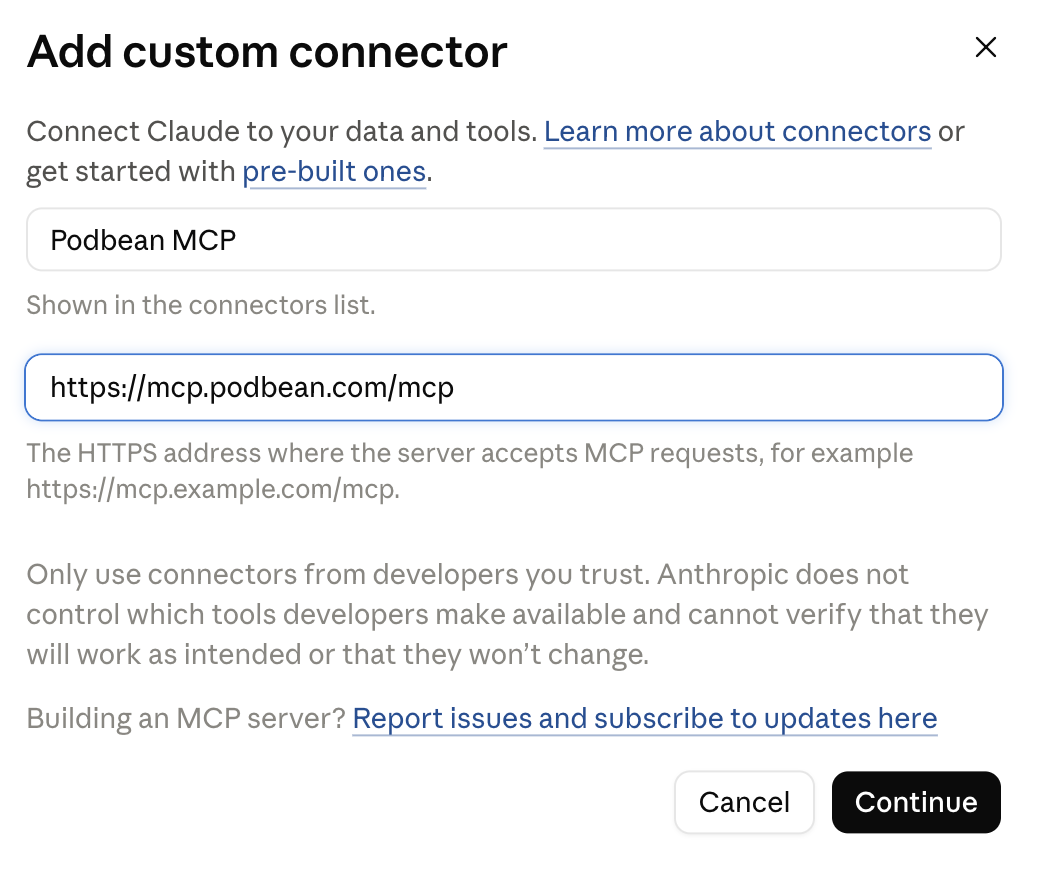
Open the Claude Desktop App, go to Settings → Connectors, and click Add custom connector.
Enter the name Podbean MCP and the server URL https://mcp.podbean.com, then click Continue.
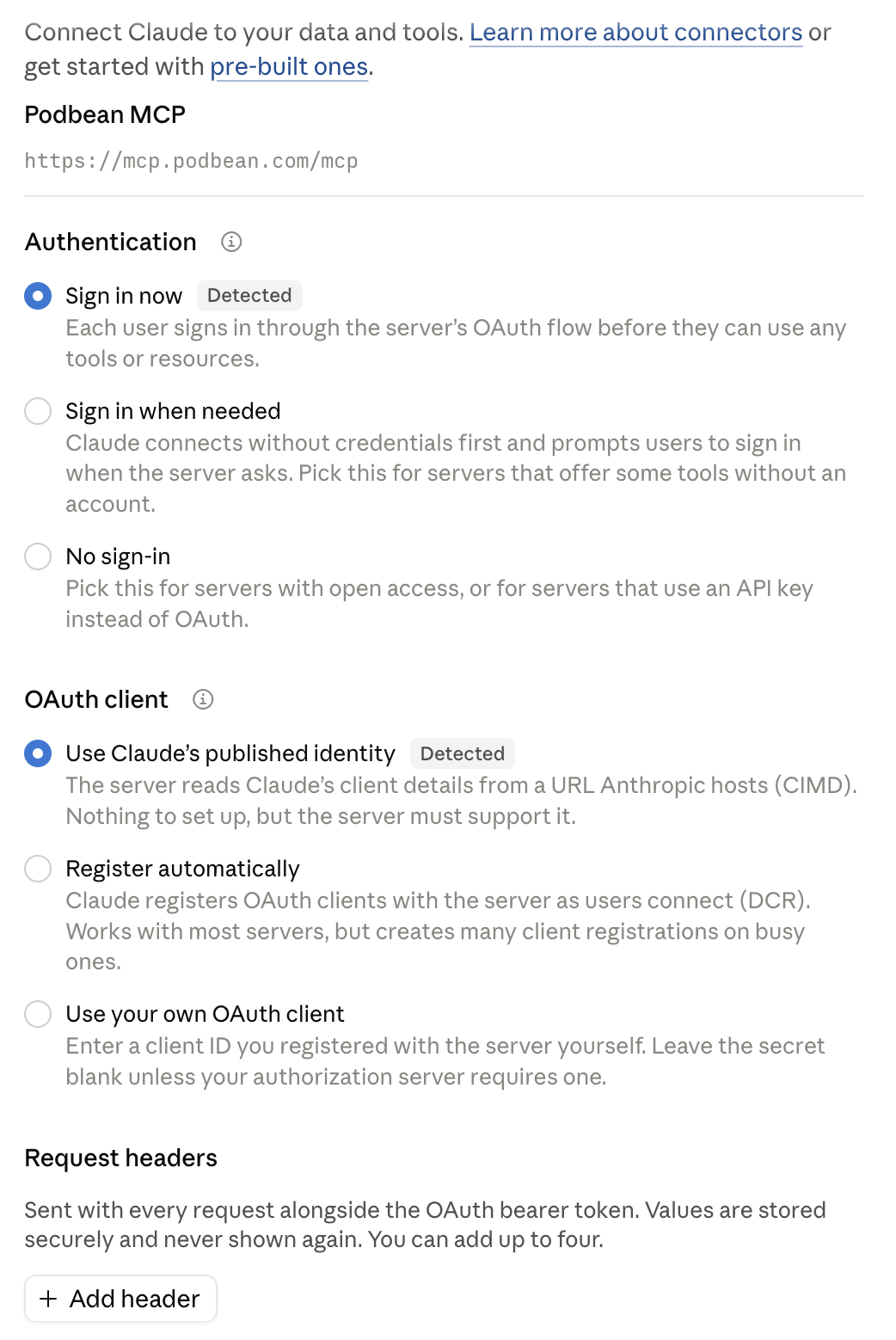
Keep the default settings Claude detected — Authentication: Sign in now; OAuth client: Use Claude’s published identity; no request headers — and click Add.
Find Podbean MCP in your connectors list and click Connect. Your browser opens Podbean’s sign-in page — log in and authorize your podcast when prompted.

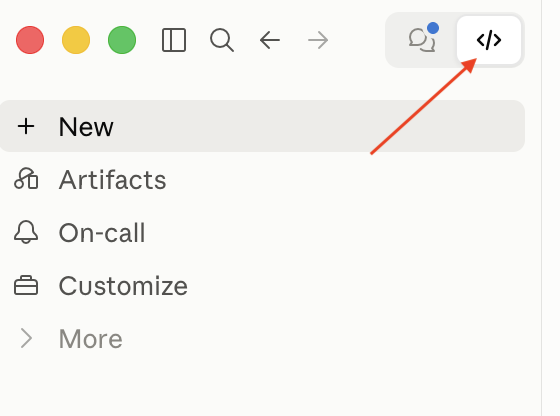
Switch to Claude Code mode with the </> toggle at the top of the window. (Code mode is required for publishing audio files from your computer.)
Back in the chat, check that the right podcast is connected:
“What’s my podcast about?”
Claude replies with your show’s title, description, category, and website.
Claude never sees your Podbean password, and you can disconnect at any time from Settings → Connectors.
Next: see what you can do — How to Publish and Manage Your Podcast with Podbean MCP.