
Add Podbean MCP to Cursor by adding one entry to your mcp.json, then authorize your podcast. It takes about two minutes.
Connect in Cursor
In Cursor, click Customize in the left sidebar, select the MCPs tab, and click + New MCP Server. This opens your mcp.json file. (You can also edit ~/.cursor/mcp.json directly — or .cursor/mcp.json inside a project to enable Podbean for that project only.)
Add the Podbean entry, keeping any existing servers, and save the file:
{
"mcpServers": {
"podbean": {
"url": "https://mcp.podbean.com"
}
}
}
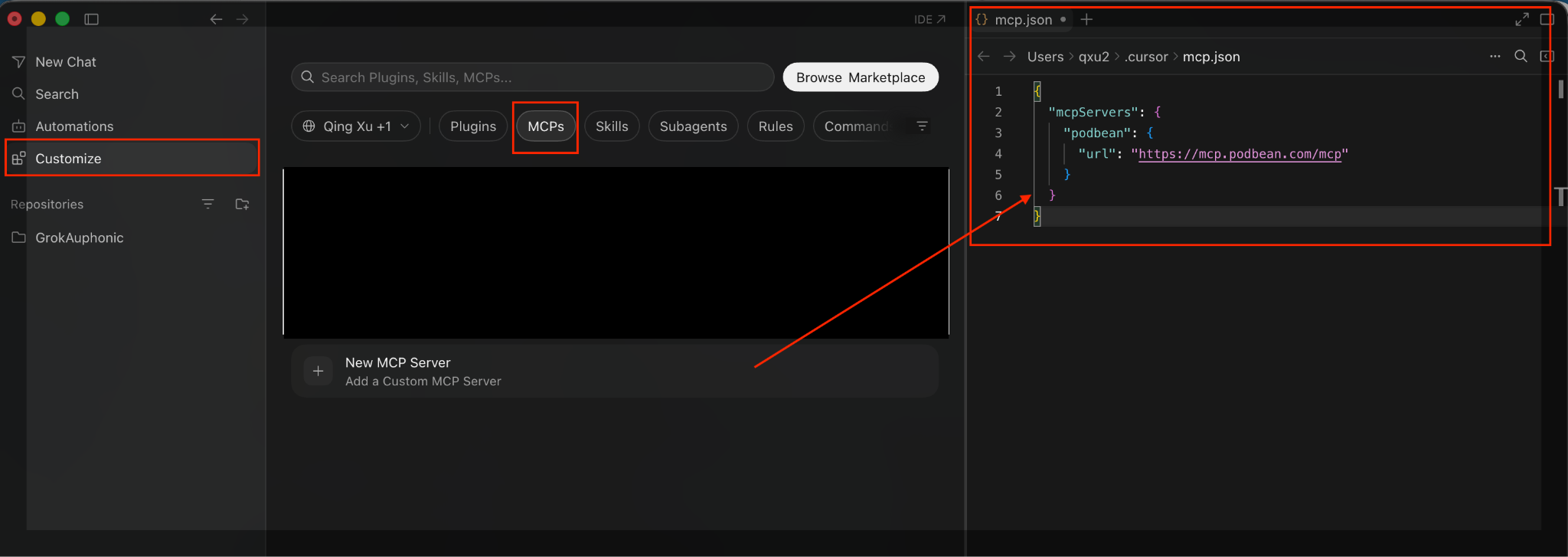
Click Authenticate to log in to your Podbean account in the browser and authorize the MCP access.

Open an Agent chat and check that the right podcast is connected:
“Use Podbean to tell me what my podcast is about.”
The agent replies with your show’s title, description, category, and website.
Other MCP apps
Any app that supports remote MCP servers (Streamable HTTP) with OAuth sign-in can connect to Podbean. Add a custom MCP server with the URL https://mcp.podbean.com, leave any token or header fields empty, and sign in to Podbean when your app prompts you to authenticate.
Your app never sees your Podbean password, and you can disconnect at any time by removing the server (and revoking access in your Podbean account settings).
Next: see what you can do — How to Publish and Manage Your Podcast with Podbean MCP.